Monthly Archives: March 2023

Digital Arts Foundation—Final Project: Week 7 (Production)

In Week 7, I started looking for an example of an enemy script. I struggled a little on what to search for. Luckily, our Lecturer suggested a couple of phrases for me to try out. In his second suggested search, I found an ideal enemy tutorial:

Figure 1: Unity simple 2D Enemy AI Follow Tutorial (MoreBBlakeyyy 2022)

It took a while to get working, but eventually the enemies were moving towards the player, just like in the tutorial. It was then a case of implementing my idea of having different speeds for different colours. I was surprised at quickly I got this to work; due to the script being attached to each enemy, all I had to do was find the colour of the enemy, and change a single variable in the enemy movement code. The result was that different coloured enemies were moving at different speeds.

Figure 2: Enemies Approaching the Player in my Unity Project.

The hardest thing to do was to actually come up with a tidy calculation that would determine the speed based on the RGB values of the enemy. Fortunately, I found a simple solution. The RGB values had either Green, Red, or Blue set to 1, so all I had to do was a simple scalar product to assign them to the correct speeds. I wasn’t sure what the product would look like, so I did some testing on notepad first.

After some trial and error, I realised [3, 2, 1] worked if I just floored all the RGB values within the colours first.

My colours were [1, 0.25, 0.25], [0.25, 1, 0.25] and [0.25, 0.25, 1] for Red, Green and Blue, respectively.

0.25 floors to 0, and 1 floors to 1, so the resulting vectors are [1,0,0], [0,1,0] and [0,0,1].

For each of the resulting vectors, we then cross-multiply with [3, 2, 1] and sum the results, obtaining 3 for Red, 2 for Green and 1 for Blue. It’s then just a case of pairing the correct speeds with those outputs.

I also made sure the enemy stops moving towards a player that is white.

using System.Collections;
using System.Collections.Generic;
using UnityEngine;

public class EnemyScript : MonoBehaviour
{
    // Declare Enemy Physics/Movement Variables

    public GameObject Player;
    private Color enemyColor;
    private float calcColor;
    private float runSpeed;
    private Dictionary<float, float> enemyID = new Dictionary<float, float>();
    private float distance;
    private PlayerScript playerScript;

    void Start()
    {
        playerScript = FindObjectOfType<PlayerScript>();
        enemyColor = gameObject.GetComponent<SpriteRenderer>().color;
        calcColor = 3 * Mathf.Floor(enemyColor.r) + 2 * Mathf.Floor(enemyColor.g) + 1 * Mathf.Floor(enemyColor.b);
        enemyID = new Dictionary<float, float>
        {
            { 3, 3f },
            { 2, 2f },
            { 1, 4f },
        };
        enemyID.TryGetValue(calcColor, out runSpeed);
    }

    void Update()
    {
        if (playerScript.activeColor != playerScript.colorWhite)
        {
            distance = Vector2.Distance(transform.position, Player.transform.position);
            Vector2 direction = Player.transform.position - transform.position;

            transform.position = Vector2.MoveTowards(this.transform.position, Player.transform.position, runSpeed * Time.deltaTime);
        }
    }
}

Figure 3: Enemy Script

Next, I needed to make a collision event so I could trigger code (such as game over) when the player and enemy collide. I found it quite difficult to get it working. I needed to add colliders to both players and enemies, and add OnCollisionEnter2D(Collision2D collision) events. I added them in both player and enemy scripts. It still wouldn’t work.

void OnCollisionEnter2D(Collision2D collision)
{
    if (collision.gameObject.CompareTag("Enemy"))
    {

        // Game Over Event
        gameObject.SetActive(false);
        FindObjectOfType<GameManager>().GameOver();
    }
}

Figure 4: On Collision Event triggering Game Over.

One issue was I forgot the 2D part in the event, but the other thing was collision layers, which I eventually learned after googling. I found the Unity documentation on the subject; and then made sure the enemies were assigned with the enemy layer, and the player was assigned to the player layer.

Figure 4: Collision Layers

I made another layer for when it was white, which would not collide with the enemy, and adapted the player colour switching code to take that into account.

Figure 5: Collision with the Enemy triggering Game Over in my Unity Project.

Next week, I will look at implementing teleporting and conditionally moving through walls.

Digital Arts Foundation—Final Project: Week 6 (Production)

For week 6, the lecturer provided me with a useful tutorial from the DEV community to set up a basic game in Unity.

I ignored the player movement part, since that part was already done.

I followed the camera part of tutorial, and then googled various sites in order to adapt their script to 2D top-down. I eventually got the camera working with lots of testing.

using System.Collections;
using System.Collections.Generic;
using UnityEngine;

public class CameraScript : MonoBehaviour

   // Making a public variable for Player.

{
    public GameObject playerDiamond; 

    private Vector3 offset;

    // Start is called before the first frame update.

    void Start()
    {
        offset = transform.position - playerDiamond.transform.position;
    }

    // Update is called once per frame.

    void LateUpdate()
    {
        // Make Camera match player's transform position.

        transform.position = playerDiamond.transform.position + offset;

    }
}

Figure 1: Camera Script that follows the player from overhead.

I changed playercube to playerDiamond, since it’s actually a diamond in my game, not a cube like in the tutorial’s. I also wasn’t sure if Vector2 should be used instead, but I think with my experimenting, keeping Vector3 made the code simpler.

Figure 2: Camera tracking the player in my Unity project.

The next stage in the tutorial was concerned with creating a game over screen. There were 3 steps involved: creating “Game Over” text that filled the screen; deactivating all the game objects for that screen; and constructing a way to reload the game.

There were numerous problems at every stage, but gradually I found solutions to the problems that came up. I think the tutorial was also slightly wrong, since it assigned a variable true, checked if it was true, and then assigned it to be true again inside the check. I could not see any other script that interacted with it, so I changed the first assignment to be false and then the check to look for false. The theory behind this is that it won’t execute more than once, which could possibly cause errors or slow down the execution depending on what code executed following the success of the check.

The tutorial showed me to put all the code inside a Game Manager script:

using System.Collections;
using System.Collections.Generic;
using UnityEngine;
using UnityEngine.SceneManagement;

 public class GameManager : MonoBehaviour
{
    bool gamehasEnded = false;

    public GameObject Floor;
    public GameObject GameOverPanel;
    public GameObject Player;

    public void GameOver()
    {
        if (!gamehasEnded)
        {
            gamehasEnded = true;

            foreach (GameObject enemy in enemies)
            {
                enemy.SetActive(false);
            }
            Floor.SetActive(false);
            GameOverPanel.SetActive(true);
        }
    }

    void Restart()
    {
        SceneManager.LoadScene(SceneManager.GetActiveScene().name);
    }

    void Update()
    {
        if (Input.GetKeyDown(KeyCode.Space))
        {
          Restart();
        }
    }
}

Figure 3: Game Manager Script.

I made the pressing down of the spacebar trigger restart, which just reloads the scene.

Figure 4: Game Over Screen in my Unity Project.

Next week, I’ll look at adding enemies and collision.

Digital Arts Foundation—Final Project: Week 5 (Production)

In week 5, I looked at a couple of in-program tutorials. The first was the Karting microgame. It helped familiarise me with the basic tools in Unity and how to publish a game. I also looked at the FPS microgame. It was also useful, this time teaching me more about moving the camera around in the scene view. While these tutorials were useful, they still didn’t really give me a good place to start.

Figure 1: Karting Microgame Preview (Unity 2023)

I asked a classmate where he started and he said he did player movement first, so I searched and found this tutorial (Stuart’s Pixel Games) on how to do simple 2D Top-Down movement. I copied the following code into a player script:

Rigidbody2D body;

float horizontal;
float vertical;

public float runSpeed = 20.0f;

void Start ()
{
   body = GetComponent<Rigidbody2D>(); 
}

void Update ()
{
   horizontal = Input.GetAxisRaw("Horizontal");
   vertical = Input.GetAxisRaw("Vertical"); 
}

private void FixedUpdate()
{  
   body.velocity = new Vector2(horizontal * runSpeed, vertical * runSpeed);
}

Figure 2: Player Movement Code (Stuart’s Pixel Games n.d.)

Once I put it in and attached it to a player game object with a rigid body, I noticed the player was drifting downwards. I simply had to zero the gravity value from the RigidBody2D and I now had basic movement.

Figure 3: Player Movement in my Project on Unity

For the final task this week, I decided to implement a feature that looked easy to do: changing colours with a key press. This is essentially broken down to a key press event, and then switching between multiple predetermined values. The two common ways to do the latter are either using a switch statement or going with a hash table approach, such as using key value pairs to determine the next value to switch to. I chose to do the latter as it looks tidier in my opinion and is something I’m more familiar with.

The Unity scripting reference API was useful in finding the information out. The pages GetKeyDown Event and Colors provide the information to create the function, while TutorialsTeacher provided information on C# dictionaries, which help with the organization.

    public Color activeColor;
    private SpriteRenderer render;
    private Dictionary<Color, Color> colorChange = new Dictionary<Color, Color>();
    public Color colorWhite = new Color(1f, 1f, 1f);
    private Color colorGreen = new Color(0.25f, 1f, 0.25f);
    private Color colorRed = new Color(1f, 0.25f, 0.25f);
    private Color colorBlue = new Color(0.25f, 0.25f, 1f);

 void Start()
    {
        ColorChangeSetUp();
    }


  void ColorChangeSetUp()
    {
        colorWhite.a = 0.75f;
        activeColor = colorWhite;
        render = GetComponent<SpriteRenderer>();
        colorChange = new Dictionary<Color, Color>
        {
            { colorWhite, colorGreen },
            { colorGreen, colorRed },
            { colorRed, colorBlue },
            { colorBlue, colorWhite }
        };
    }
    void Update()
    {
        if (Input.GetKeyDown(KeyCode.R))
        {
            if (colorChange.TryGetValue(activeColor, out Color newColor))
            {
                activeColor = newColor;
                render.color = newColor;
            }
        }
     }

Figure 4: Player Colour Switching Code

The tricky parts were trying to get the right colours to display. It took me a while to learn how to generate custom colours using the “new Color” constructor.

Figure 5: Player Color Switching in my Unity project.

Next week, I will look at making a very basic working game.

Digital Arts Foundation—Final Project: Week 4 (Pre-Production)

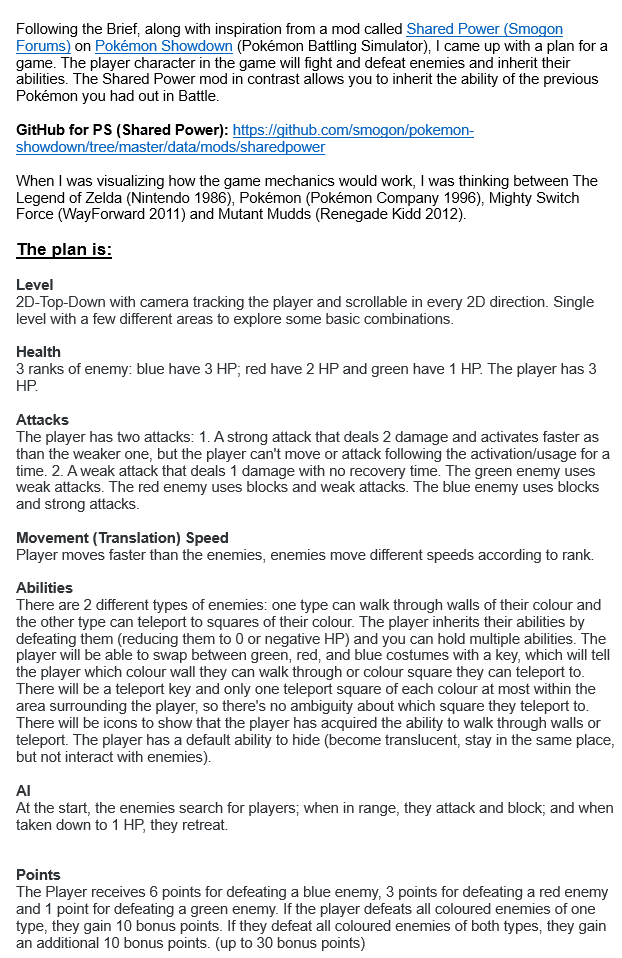
For this week, our lecturer tasked us with summarising our pre-production by producing a milestone video. I thought about what I wanted to show: my plan document and the flowcharts. I also wanted to talk about the languages I explored in Week 2 and also my inspirations. I came up with the following document:

Figure 1: Finalized Plan of Final Project

It outlines my inspirations, as well as the game mechanics. I neglected to mention the blue/red/green rank concept was inspired by Mario Bros. , the arcade game featuring Mario and Luigi, where they bump enemies from below, and the spin-off of the Donkey Kong arcade game.

I’m big into Pokemon and I’ve played a battle mod where your inherit other abilities from the previous Pokemon you sent out. This led me to adapt the brief to something incorporating inheritance. I settled for gaining abilities of defeated enemies. As mentioned, I was also interested in getting past walls that you wouldn’t normally be able to get past, which features in many 2D games, including Mighty Switch Force and Mutant Mudds. The brief also strongly reminded me of The Legend Zelda on the NES.

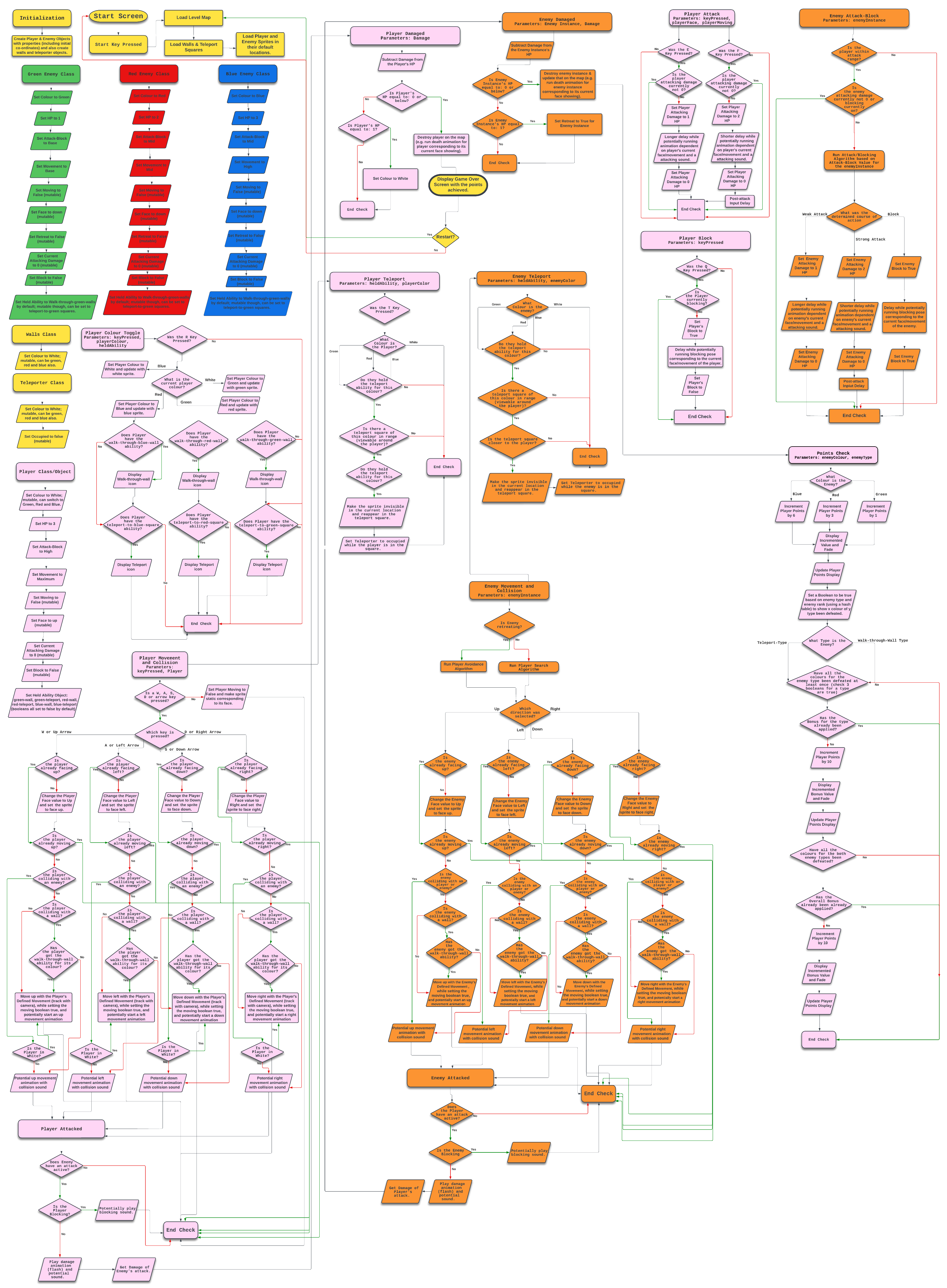
Along with this document, I also wanted to present the flowcharts that I’d produced on Lucid Chart and link to an article that showed the benefit of making a 2D game on Unity as opposed to Unreal Engine. I found a comparison article here.

My final page of flow charts looked like this:

Figure 2: Page of Flow Charts

Once I had all these elements in place, I recorded my screen and did a commentary on my pre-production. I wrote a quick script that I could read from, and kept re-recording until I produced something of 2 minutes length, as per requirements, and that I was also happy with.

Figure 3: Pre-Production Milestone video

I realized after I forgot to make a proper theme and name for the game, and also summarise what the game was about. I was happy otherwise.

That concludes this week. Next week I will describe my exploration on Unity and start of my game, which will come under the first week of production.

Digital Arts Foundation—Final Project: Week 3 (Pre-Production)

For week 3, I mind-mapped my project with flowcharts, making pseudo-code that will help me once I enter production. I started out by describing the start of the game, the damage received, and the game over / restart sequence.

Figure 1: Game Start and Player Damaged on Lucid Chart (2023).

Next, I thought about all the key variables that I thought would need to be accessed in the game events to make the game flow. For instance, I planned three different types of enemies, and depending on the type, they were to be weaker or stronger; but at the same time, sharing the basic characteristics of an enemy. The variables indicate what specific code is needed execute to generate the desired differences in strength.

Figure 2: Enemy Variables on Lucid Chart (2023)

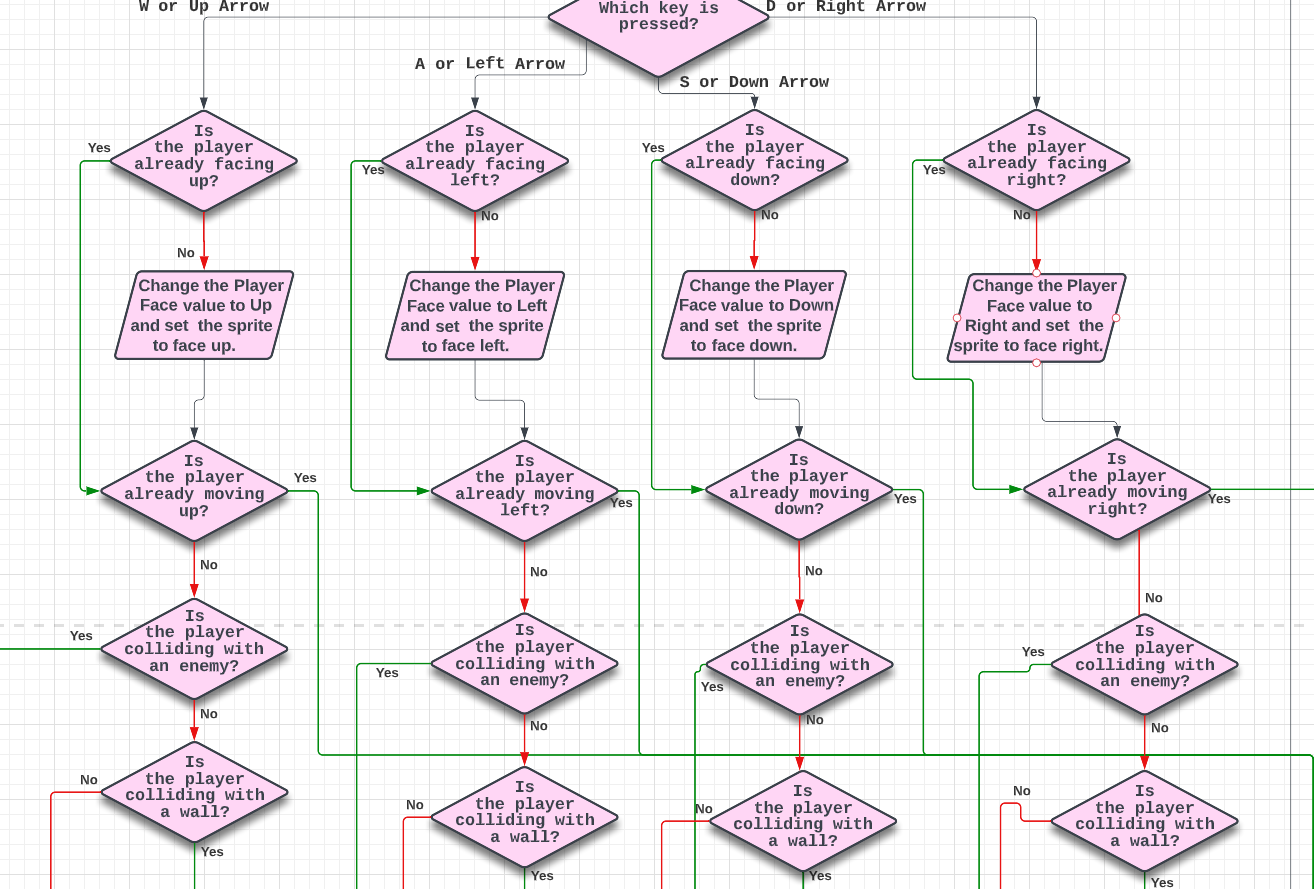
The final stage of making the flow charts was to add the events in the game. For example, I presented some approximate logic for player movement, such as changing the orientation of the player sprite, and also how the player interacted with walls. Other events included player and enemy attacking, and the points gained when defeating enemies.

Figure 3: Player Movement Function on Lucid Chart (2023)

That concludes week 3. Week 4 will look at the penultimate stage of pre-production, summarising my planning before exploring Unity in Week 5.